
Introduction
Let’s be honest—creating high-quality social media content consistently is not easy.
You need designs, creativity, consistency, and most importantly… time.
But what if you could create professional-looking posts in minutes—even with zero design experience?
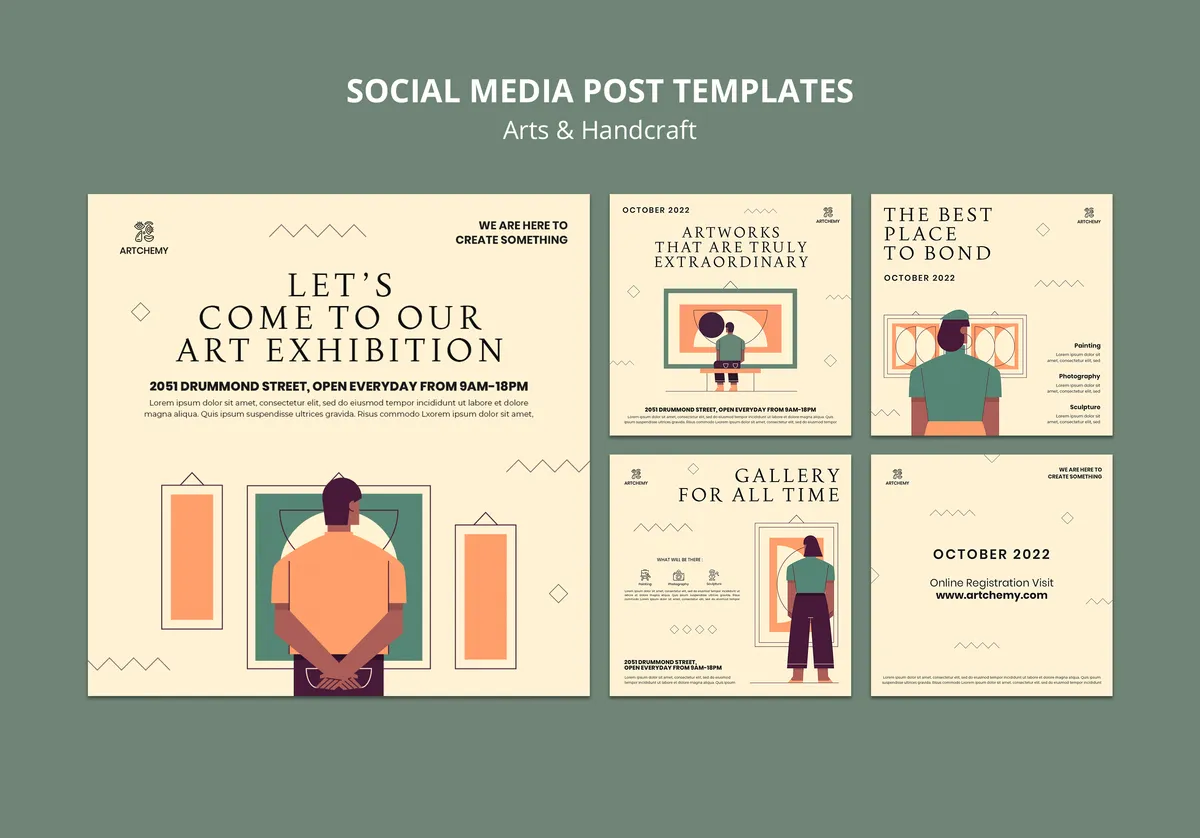
That’s where Canva for social media comes in.
Canva has completely transformed how beginners, marketers, and businesses create visual content. Whether you’re posting on Instagram, LinkedIn, Facebook, or YouTube—Canva makes it simple.
In this complete guide, you’ll learn:
- What Canva is and why it’s powerful
- How to use Canva for social media step by step
- Design tips that actually improve engagement
- Real-world examples and strategies
- Advanced techniques to stand out
By the end, you’ll be able to create scroll-stopping content using Canva like a pro.
What is Canva
Canva is an online graphic design tool that allows users to create visual content easily using templates, drag-and-drop features, and design elements.
Simple Definition
Canva for social media means:
- Designing posts quickly
- Using templates and graphics
- Creating visually appealing content
Why Canva is Perfect for Social Media Marketing
Beginner-Friendly
No design skills required.
Time-Saving
Ready-made templates speed up work.
Cost-Effective
Free version available.
Versatile
Supports all platforms.
Canva Features You Should Know
Templates
Pre-designed layouts for posts.
Elements
Icons, shapes, and graphics.
Text Tools
Custom fonts and styles.
Brand Kit
Save colors and logos.
Magic Resize
Resize designs instantly.
How to Use Canva for Social Media Step by Step
Step 1 Create Canva Account
- Visit Canva website
- Sign up using email
Step 2 Choose Design Type
Select platform:
- Instagram post
- Facebook banner
- YouTube thumbnail
Step 3 Select Template
Pick a template that matches your content.
Step 4 Customize Design
Edit Elements
- Change text
- Replace images
- Adjust colors
Step 5 Add Branding
Include:
- Logo
- Brand colors
- Fonts
Step 6 Download or Publish
Download in PNG or JPG format or post directly.
Best Canva Designs for Social Media
Instagram Posts
Square format visuals.
Stories
Vertical content.
Carousel Posts
Multiple slides.
YouTube Thumbnails
High-impact visuals.
LinkedIn Posts
Professional designs.
Canva vs Photoshop
| Feature | Canva | Photoshop |
|---|---|---|
| Ease of Use | Easy | Complex |
| Learning Curve | Low | High |
| Cost | Free available | Paid |
| Features | Basic to advanced | Advanced |
Real-World Example
A digital marketer creates:
- Instagram post using Canva
Steps:
- Select template
- Add text and visuals
- Post regularly
Result:
- Increased engagement
- Better branding
Common Mistakes in Canva Designs
Overcrowded Design
Too many elements confuse users.
Poor Color Choices
Reduces readability.
Inconsistent Branding
Looks unprofessional.
Low-Quality Images
Affects credibility.
Best Practices for Canva Social Media Designs
Keep It Simple
Minimal design works best.
Use Consistent Branding
Maintain uniform colors and fonts.
Focus on Readability
Clear fonts and spacing.
Use High-Quality Images
Improves engagement.
Canva Content Strategy for Social Media
Educational Content
Tips and guides.
Promotional Content
Product or service ads.
Engagement Content
Polls, questions, quotes.
Storytelling Content
Share experiences.
Advanced Canva Tips
Use Grids and Alignment
Keep designs clean.
Leverage Animations
Create engaging visuals.
Use Layers Effectively
Better control.
Create Templates
Save time for future posts.
Canva for Different Platforms
Focus on visuals.
Mix text and images.
Professional tone.
YouTube
Thumbnail optimization.
Canva SEO for Social Media
Use Keywords in Text
Add relevant keywords.
Optimize File Names
Use descriptive names.
Add Captions
Improve reach.
Use Hashtags
Boost visibility.
Future of Canva in Marketing
AI Design Tools
Automated design suggestions.
Video Content Growth
More video features.
Collaboration Features
Team-based design.
Personalization
Customized designs.
Short Summary
Using Canva for social media, you can create professional, engaging content quickly without design skills.
Conclusion
Canva is more than a design tool—it’s a complete solution for social media marketing.
If you:
- Use templates smartly
- Maintain branding
- Stay consistent
You can create high-quality content that drives engagement and growth.
Start using Canva today—and transform your social media presence.