Introduction
Designing high-converting Facebook ads doesn’t have to be complicated. You don’t need Photoshop skills, expensive editing tools, or a full-time graphic designer. With Canva Facebook Ads design, marketers, beginners, and even non-designers can create professional, scroll-stopping ad creatives in minutes.
But here’s the real challenge:
It’s not just about making a “beautiful” design — it’s about making a strategic, conversion-focused, ad-optimized creative that captures attention and drives clicks.
In this complete guide, you’ll learn step-by-step how to use Canva for Facebook ads, including best practices, examples, formats, design principles, and optimization tips used by expert marketers. By the end, you’ll be able to design Facebook ad creatives that not only look great but also perform exceptionally well.
Let’s get started.
Why Use Canva for Facebook Ads?
1. Beginner-Friendly Yet Powerful
Canva allows anyone to create ads with drag-and-drop simplicity — no technical skills required.
2. Ready-Made Ad Templates
It includes thousands of pre-designed templates for:
- E-commerce ads
- Lead generation
- Brand awareness
- Carousel ads
- Promotional offers
3. Perfect for Marketers and Small Businesses
You don’t need to hire a designer. Canva gives:
- Fast output
- Budget-friendly design
- Professional-level results
4. Optimized for Social Media Sizes
You get exact dimensions recommended by Facebook.
5. Easy Collaboration
Teams can edit and share designs instantly.
Understanding Facebook Ad Requirements Before Designing
Recommended Ad Sizes
Single Image Ad
- 1200 × 628 pixels or 1080 × 1080 pixels
Carousel Ad
- 1080 × 1080 pixels
Video Ad
- 4:5 or 1:1 ratio
Text Guidelines
- Headline: Up to 40 characters
- Primary Text: 125 characters
- Description: 30 characters
Design Guidelines
Avoid:
- Too much text
- Low-quality images
- Cluttered layout
Facebook prefers clean, visually appealing creatives.
How to Use Canva for Facebook Ads (Step-by-Step Guide)
Step 1: Create a Canva Account
Visit canva.com and sign up using:
Tip: Canva Pro gives access to premium images, fonts, and animations — helpful for branding.
Step 2: Search for Facebook Ad Templates
How to Find Templates
Go to the search bar → Type “Facebook Ads” → Select Facebook Ad Template category.
You’ll see templates for:
- E-commerce
- Event promotions
- Service-based ads
- Offers and discounts
- Lead generation
Choose a template closest to your campaign objective.
Step 3: Select the Correct Ad Dimensions
If you want complete control, start with a blank 1080×1080 layout.
Common Canva Facebook Ads design sizes
- 1080×1080 (square)
- 1200×628 (landscape)
- 1080×1350 (vertical)
Best converting size?
1080×1080 (square) — works across all placements.
Step 4: Add High-Quality Images
Where to find images in Canva
Canva Media Library → Photos → Search using keywords.
Choose:
- Bright images
- High-resolution visuals
- Images matching your offer
Example:
Selling fitness products? Use:
- People working out
- Before/after graphics
- Lifestyle imagery
Tip: Avoid overused stock photos.
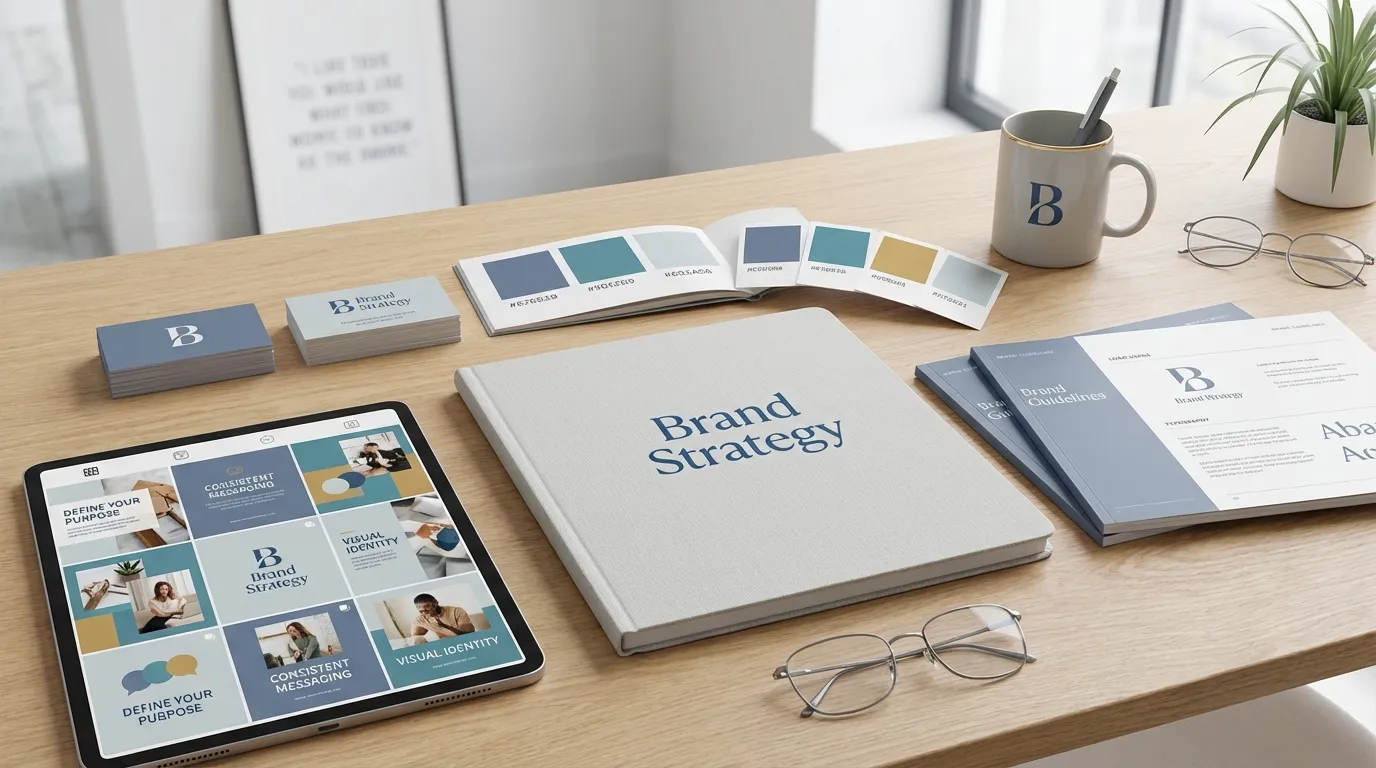
Step 5: Add Your Brand Elements
Brand consistency increases trust and recognition.
Elements to Add
- Brand colors
- Logo
- Font style
- Background patterns
Pro Tip for Marketers
Use a consistent template style across all ads for brand recall.
Step 6: Write Powerful Ad Text
Strong copy improves CTR. Keep text short and benefit-driven.
Use these 4 copy elements:
## 1. Hook
Grab attention immediately.
Examples:
- “Limited Offer!”
- “50% Off Today Only!”
- “New Launch!”
## 2. Value Proposition
What makes your product unique?
## 3. Benefit
Tell users how it improves their life.
## 4. CTA (Call to Action)
Examples:
- Shop Now
- Learn More
- Sign Up
- Book Now
Step 7: Use Contrast and Color Psychology
Color can increase conversions dramatically.
High-Converting Colors
- Blue: Trust
- Red: Urgency
- Yellow: Positivity
- Black: Premium / Luxury
- Green: Growth / Natural
Tip: Make your CTA button stand out with contrasting colors.
Step 8: Keep the Layout Clean
Follow this expert rule:
“One Idea Per Ad”
Don’t try to advertise everything at once.
Use White Space
This improves readability and visual focus.
Avoid Clutter
Remove unnecessary icons, shapes, or text blocks.
Step 9: Add Product Mockups (Optional but High-Impact)
Canva includes:
- Mobile mockups
- Laptop mockups
- Product packaging mockups
- T-shirt mockups
These are perfect for:
- Course creators
- Ecommerce stores
- Agencies
Mockups make your ad more realistic and professional.
Step 10: Download Your Ad
Best format:
PNG – high quality
JPEG – faster loading
For video ads → MP4
Tip: Keep file size under 30 MB for smooth Facebook upload.
Advanced Canva Facebook Ads Design Tips Used by Pro Marketers
1. Create Variations for A/B Testing
Test:
- Headlines
- Colors
- Images
- CTA button
- Layout
A/B testing boosts conversions up to 3×.
2. Use Canva’s Animation for Video Ads
Animated ads get more attention.
Examples:
- Slide transitions
- Fade-in text
- Motion elements
Facebook loves video content.
3. Use Filters and Effects to Highlight Products
Features like:
- Glow
- Auto-enhance
- Shadows
- Background blur
These help make products “pop”.
4. Add Social Proof
Boom in CTR when you include:
- Reviews
- Ratings
- User photos
People trust other people.
5. Use Canva’s Resize Tool (Pro Feature)
Convert your design into:
- Story Ad
- Reel Ad
- Feed Ad
- Carousel Ad
Saves hours of work.
Design Examples for Different Types of Facebook Ads
1. E-Commerce Ad Example
- Product photo
- Big discount label
- Clear CTA: Shop Now
2. Lead Generation Ad Example
- E-book cover
- Benefit-driven headline
- CTA: Download Free Guide
3. Real Estate Ad Example
- Property photo
- Price and location
- CTA: Schedule a Visit
4. Coaching Ad Example
- Photo of coach
- Value statement
- CTA: Book Free Call
Each example uses Canva’s drag-and-drop system for fast editing.
Common Mistakes Beginners Make (And How to Avoid Them)
1. Too Much Text
Facebook reduces reach for text-heavy ads.
2. Using Low-Quality Images
Always use HD images.
3. Poor Color Contrast
If colors blend into each other → CTR drops.
4. No Clear CTA
Every ad must have one CTA.
5. Not Removing Backgrounds
Use Canva’s Background Remover to isolate subjects.
Short Summary
This guide explained how to use Canva for Facebook ads in a simple, beginner-friendly yet expert way. You learned everything — templates, sizing, text, branding, mockups, ads examples, best practices, and advanced optimization strategies.
Conclusion
Designing Facebook ads with Canva is one of the fastest and most effective ways to create professional visuals without needing advanced design skills. With its templates, branding tools, drag-and-drop editor, and huge media library, Canva helps marketers create ads that convert.
Whether you're promoting products, services, events, or personal brands — your Canva Facebook Ads design can become a powerful asset when you apply the correct strategy, creativity, and optimization techniques.
Start designing today and turn your ideas into high-performing Facebook ads.
FAQs
1. Is Canva good for designing Facebook ads?
Yes. Canva is one of the best tools for beginners and marketers to design Facebook ads quickly and professionally.
2. What is the best size for Facebook ads in Canva?
1080×1080 pixels works for most placements and gives the best performance.
3. Can I use Canva templates for Facebook ads?
Absolutely. Canva offers thousands of ready-made Facebook ad templates.
4. Are Canva ads allowed by Facebook?
Yes, as long as they follow Facebook’s advertising policies.
5. Can Canva create video ads for Facebook?
Yes. Canva lets you add animations, transitions, and effects to create video ads.
Meta Title
How to Use Canva for Facebook Ads | Complete 2025 Guide
Meta Description
Learn how to use Canva for Facebook ads with this complete guide. Includes templates, design tips, optimization strategies, mistakes to avoid, and examples for marketers.
Feature Image Link (Royalty-Free)
https://images.pexels.com/photos/3183150/pexels-photo-3183150.jpeg
References (Wikipedia Links)
https://en.wikipedia.org/wiki/Facebook
https://en.wikipedia.org/wiki/Online_advertising
https://en.wikipedia.org/wiki/Graphic_design
https://en.wikipedia.org/wiki/Canva