
Introduction
Modern web applications are becoming more complex, and ensuring they work correctly across different browsers is critical. Manual testing alone cannot keep up with the speed of modern development cycles. That is why automation testing tools have become essential in the software industry.
One of the most powerful and modern automation tools today is Playwright. Developed by Microsoft, Playwright allows developers and QA engineers to automate browser interactions and perform end to end testing efficiently.
But before using this tool, the first thing you need to know is how to install Playwright correctly.
Many beginners search for install playwright tutorials but often find confusing or incomplete instructions. This guide solves that problem by providing a clear step by step process to install Playwright and start writing automated tests.
In this comprehensive guide, you will learn
- What Playwright is and why it is popular
- System requirements for installing Playwright
- How to install Playwright step by step
- How to install browsers for Playwright
- How to create your first Playwright test
- Best practices for beginners
By the end of this guide, you will know exactly how to install Playwright and run your first automated test.
What Is Playwright
Before learning how to install playwright it is important to understand what Playwright actually is.
Playwright is an open source automation framework used for testing web applications. It allows developers and testers to simulate real user interactions in browsers.
With Playwright you can automate actions such as
- Clicking buttons
- Filling forms
- Navigating pages
- Uploading files
- Validating UI elements
Playwright is designed to support modern web applications that use frameworks such as
- React
- Angular
- Vue
Because of its modern architecture Playwright has become one of the most preferred tools for automation testing.
Why Developers Choose Playwright
The reason many developers want to install playwright is because of its powerful features.
Cross Browser Testing
Playwright supports three major browser engines
- Chromium
- Firefox
- WebKit
This means tests can run across
- Google Chrome
- Microsoft Edge
- Mozilla Firefox
- Safari environments
Auto Waiting Mechanism
Playwright automatically waits for elements to become visible or clickable before performing actions.
This reduces flaky tests.
Parallel Test Execution
Playwright supports parallel testing allowing multiple tests to run simultaneously.
Powerful Debugging Tools
Playwright includes tools such as
- Trace viewer
- Screenshots
- Video recording
- Detailed logs
These tools make debugging much easier.
System Requirements to Install Playwright
Before you install playwright make sure your system meets the following requirements.
Required Software
You need
- Node.js installed
- npm or yarn package manager
- Code editor such as VS Code
Supported Operating Systems
Playwright works on
- Windows
- macOS
- Linux
To verify Node.js installation run the command
node -v
If Node.js is installed correctly you will see the version number.
How to Install Playwright Step by Step
Now let us go through the complete process to install playwright step by step.
Step 1 Install Node.js
Playwright requires Node.js to run.
Visit the official Node.js website and download the latest stable version.
After installation verify it using
node -v
You should see a version number.
Step 2 Create a New Project
Next create a project folder where you will install Playwright.
Example
mkdir playwright-project
cd playwright-project
Then initialize a Node project
npm init -y
This creates a package configuration file.
Step 3 Install Playwright
Now install Playwright using npm
npm install @playwright test
This installs the Playwright testing framework.
Step 4 Install Browsers
Playwright requires browsers to run tests.
Install them using
npx playwright install
This command downloads the supported browsers automatically.
Installed browsers include
- Chromium
- Firefox
- WebKit
Step 5 Verify Playwright Installation
To verify that you successfully install playwright run
npx playwright --version
This command displays the installed Playwright version.
Writing Your First Playwright Test
After you install playwright the next step is writing your first automated test.
Create a file called
example.spec.js
Example Playwright test
import { test, expect } from '@playwright/test'

test('homepage test', async ({ page }) => {
  await page.goto('https example.com')
  await expect(page).toHaveTitle(/Example/)
})
This test does the following
1 Opens a browser 2 Navigates to a webpage 3 Checks if the page title matches the expected value
Running Playwright Tests
After writing a test you can run it using
npx playwright test
Playwright will automatically launch the browser and execute the test.
You can also run tests in headless mode which runs tests without opening a visible browser window.
Playwright vs Traditional Automation Tools
To understand the advantages of Playwright it helps to compare it with traditional tools.
Feature Playwright Traditional Tools
Cross Browser Testing Yes Limited Auto Waiting Built in Manual Parallel Execution Built in Requires setup Modern Web Support Excellent Moderate Setup Simple Complex
Because of these advantages many teams prefer Playwright.
Best Practices After Installing Playwright
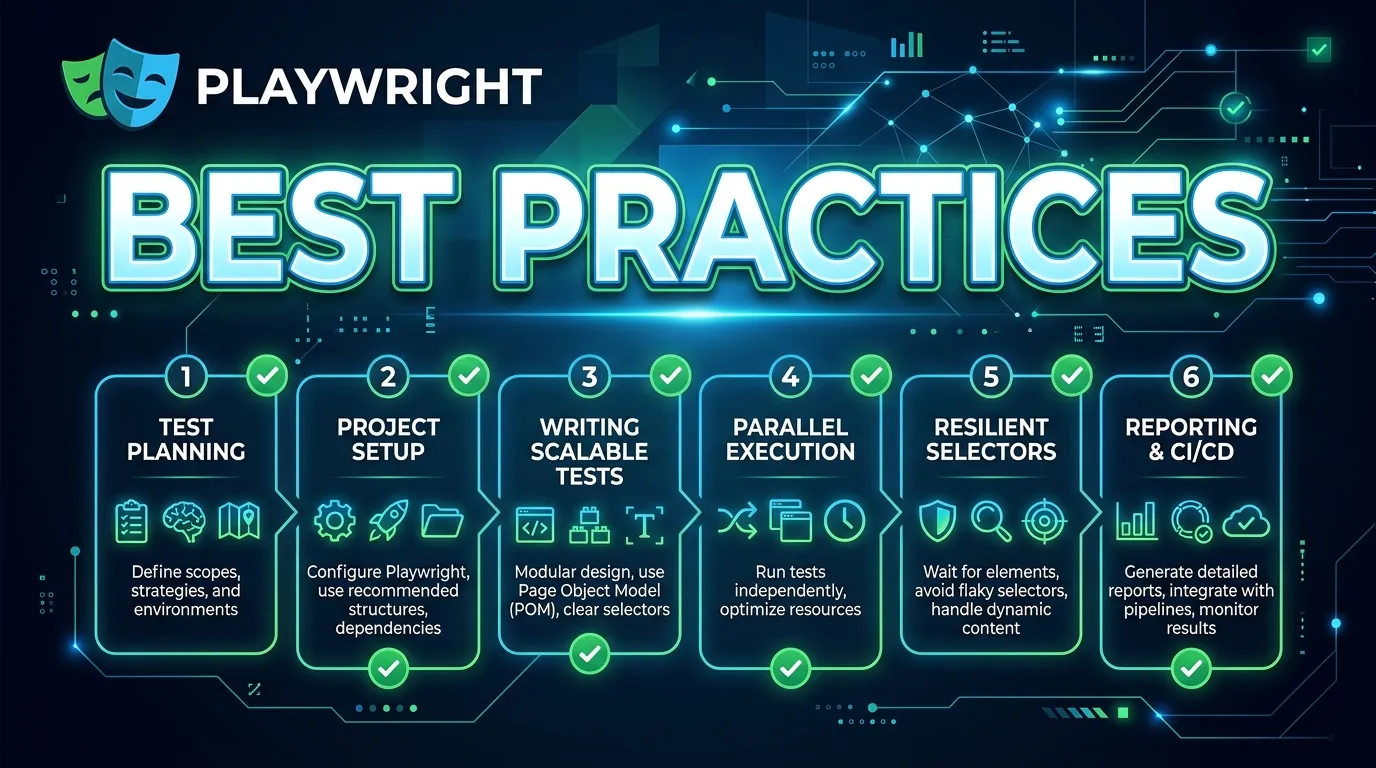
After you install playwright following best practices will help you maintain a stable automation framework.
Use Page Object Model
The Page Object Model design pattern improves test organization and maintainability.
Keep Tests Independent
Each test should run independently without relying on other tests.
Use Descriptive Test Names
Clear test names help developers understand what each test does.
Run Tests in CI Pipelines
Integrating Playwright with CI tools such as GitHub Actions or Jenkins helps automate testing during deployments.
Common Issues When Installing Playwright
Sometimes beginners face issues when they install playwright.
Node.js Not Installed
Make sure Node.js is installed before installing Playwright.
Browser Installation Failure
If browsers fail to install run
npx playwright install
again.
Permission Errors
Run the terminal with administrator privileges if permission issues occur.
Short Summary
Installing Playwright is simple when you follow the correct steps.
The process includes
1 Install Node.js 2 Create a project folder 3 Install Playwright using npm 4 Install browsers 5 Write and run your first test
Once installed Playwright provides powerful tools for modern automation testing.
Conclusion
Automation testing is essential for maintaining software quality in modern development environments. Tools like Playwright make it easier to test applications across multiple browsers and platforms.
Learning how to install playwright is the first step toward building a powerful automation testing workflow.
With its modern architecture built in features and strong browser support Playwright has quickly become one of the most popular frameworks for automation testing.
Whether you are a beginner learning automation or an experienced QA engineer mastering Playwright can significantly improve your testing efficiency.
Frequently Asked Questions
Playwright is used for automating web application testing by simulating real user interactions in browsers.


