
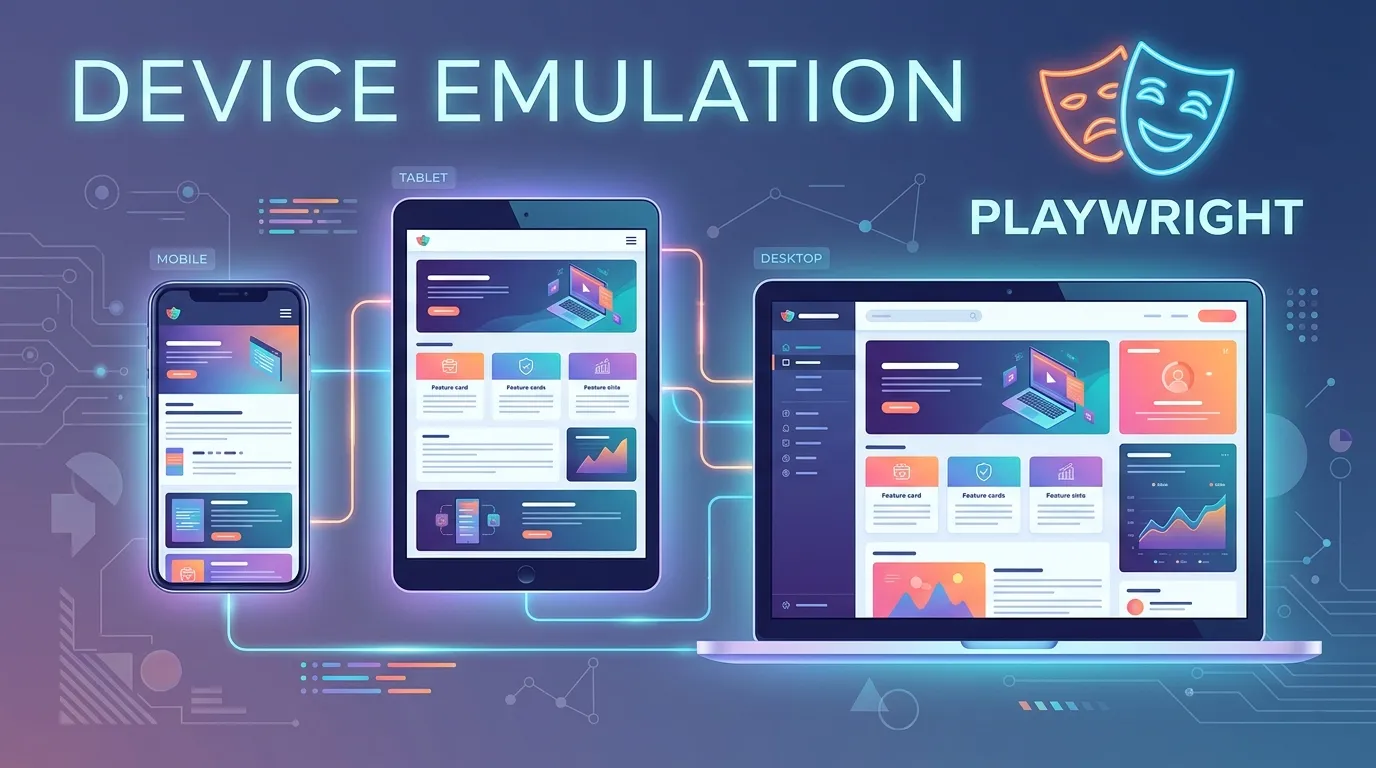
Introduction
Have you ever tested your website on your laptop and thought, “Everything looks perfect,” only to open it on your phone and see a completely broken layout?
- Buttons are misaligned
- Text overlaps
- Navigation is confusing
- Features don’t work as expected
This is one of the biggest challenges in modern web development.
Users today access websites from:
- Smartphones
- Tablets
- Laptops
- Different browsers and screen sizes
Testing on all these devices manually is:
- Time-consuming
- Expensive
- Difficult to scale
This is where playwright device emulation becomes a powerful solution.
With Playwright, you can simulate real devices like:
- iPhone
- Android phones
- Tablets
All without needing physical hardware.
In this guide, you will learn:
- What device emulation in Playwright is
- Why it is essential
- How to set it up step by step
- Real examples and use cases
- Best practices and common mistakes
By the end, you will be able to perform efficient, scalable, and reliable device testing using Playwright.
Simple Explanation
Instead of testing on a real phone, Playwright mimics how a device behaves.
What It Simulates
- Mobile browser behavior
- Touch interactions
- Screen resolution
- Device specific settings
2 Faster Testing
No need for physical devices.
4 Scalable Automation
Run tests across multiple devices easily.
Popular Devices Available
- iPhone 13
- iPhone SE
- Pixel 5
- Galaxy S9
- iPad
Step 1 Install Playwright
npm init playwright@latest
Step 3 Configure Device in Config File
export default {
  projects: [
    {
      name: 'iPhone 13',
      use: { ...devices['iPhone 13'] },
    },
  ],
};
import { test, expect } from '@playwright test';

test('Device emulation test', async ({ page }) => {
  await page.goto('https:example.com');
  await expect(page).toHaveTitle(/Example/);
});
Example Multi Device Setup
projects: [
  { name: 'iPhone', use: { ...devices['iPhone 13'] } },
  { name: 'Android', use: { ...devices['Pixel 5'] } },
  { name: 'Tablet', use: { ...devices['iPad'] } },
]
You can create your own device settings.
When to Use Custom Devices
- Testing specific resolutions
- Simulating uncommon devices
- Debugging layout issues
Example
await page.setViewportSize({ width: 375, height: 667 });
Testing Touch Interactions
Common Mobile Actions
- Tap
- Swipe
- Scroll
Example Scroll
await page.mouse.wheel(0, 500);
Example Flow
await page.goto('shop');
await page.click('text=Product');
await page.click('#add to cart');
await page.click('#checkout');
Best Practices for Playwright Device Emulation
Use Multiple Devices
Test across different screen sizes.
Combine with Desktop Testing
Ensure full coverage.
Validate UI Carefully
Check:
- Alignment
- Responsiveness
- Visibility
Ignoring Touch Testing
Misses real interactions.
Skipping Edge Cases
Test unusual screen sizes.
Geolocation Testing
Test location based features.
Permission Testing
- Camera
- Location
- Notifications
Future of Device Emulation
Device testing is evolving with:
- Cloud device farms
- AI based testing
- Cross platform automation
- Real time analytics
Playwright is designed to support these advancements.
Conclusion
In today’s multi device world, testing only on desktop is not enough.
Users expect flawless experiences across:
- Phones
- Tablets
- Browsers
With Playwright device emulation, you can:
- Test efficiently
- Scale your automation
- Improve product quality
Start using playwright device emulation today and build a robust testing strategy.
Does Playwright support real devices
No it supports emulation not physical devices.
Why use device emulation
It helps test responsiveness and compatibility.


